

How the new settlement page works
When you access the settlement page, the first thing you see is a list of the parent MIDs (master accounts) associated with your user.💡 Only parent accounts are shown at this stage – sub-merchants are not listed here.After selecting a parent MID, a new page opens showing all sub-merchants linked to that master account. This gives you a complete view of your structure in one place, organized by the parent account.
How to create a new settlement
Step 1: Select your parent MID
Go to Account > Setlements. On the settlement page, choose the parent MID you want to manage. This is the master account that holds the sub-merchants you wish to withdraw from.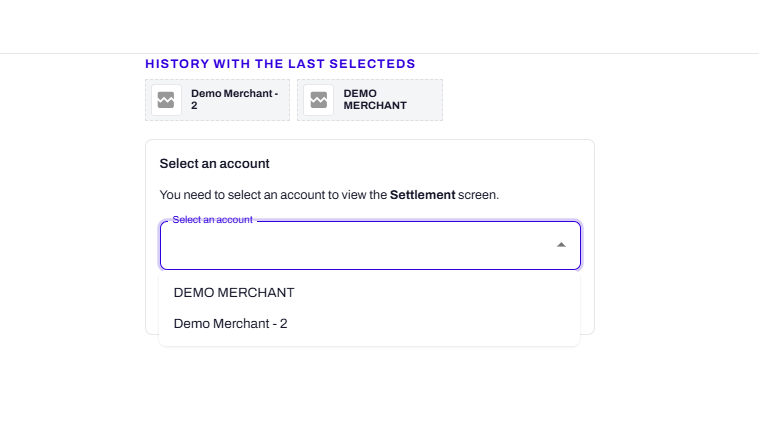
Step 2: Review your sub-merchants
After selecting the parent MID, you will see a list of all sub-merchants under that account, along with their respective balances. This view helps you understand exactly which accounts have funds available.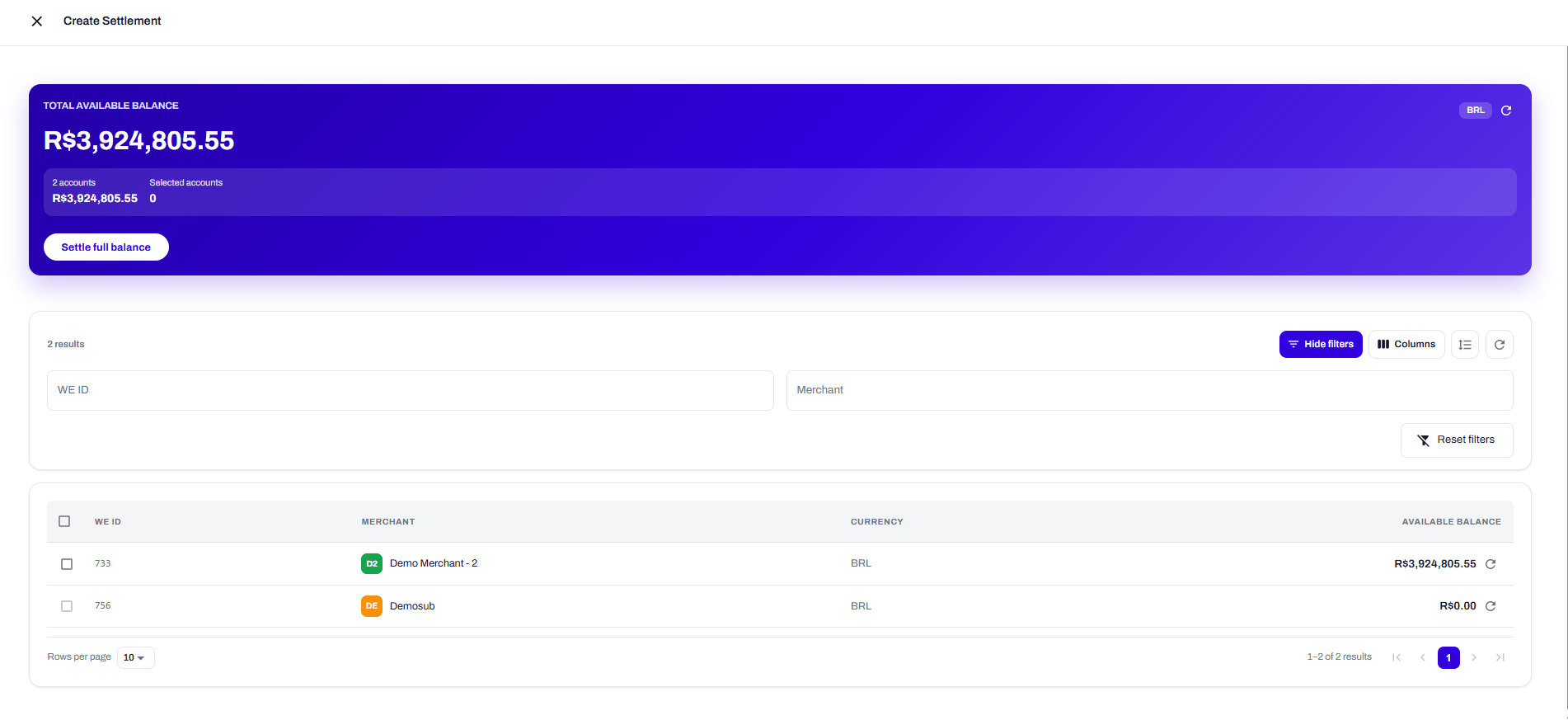
Step 3: Choose which accounts to settle
From this consolidated view, you have two options:
Full balance:
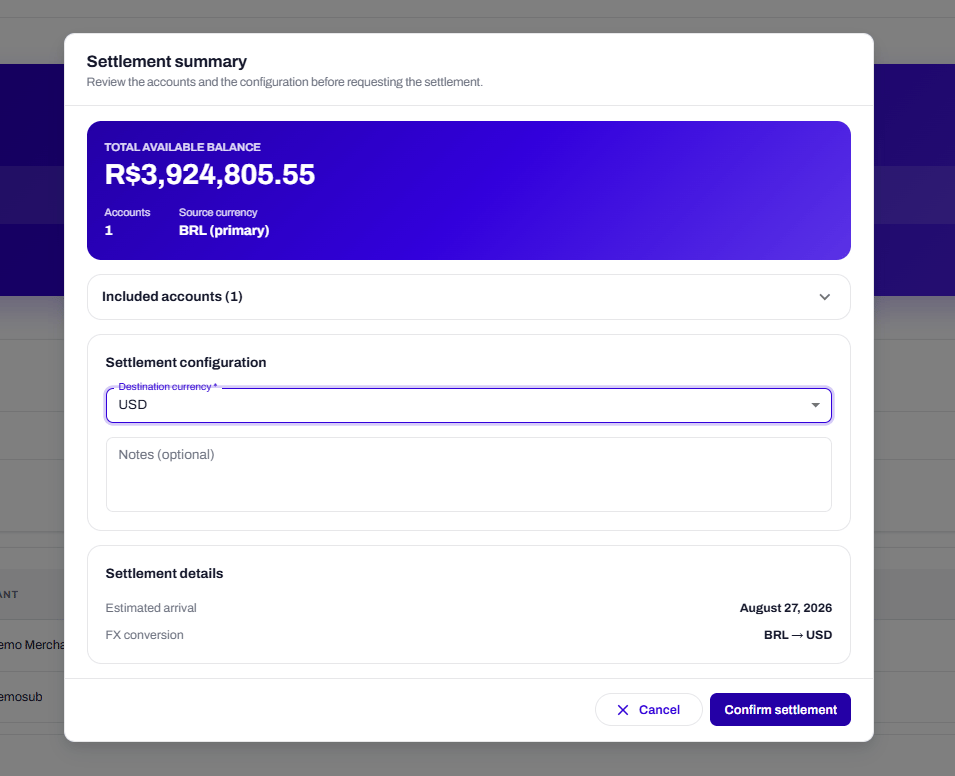
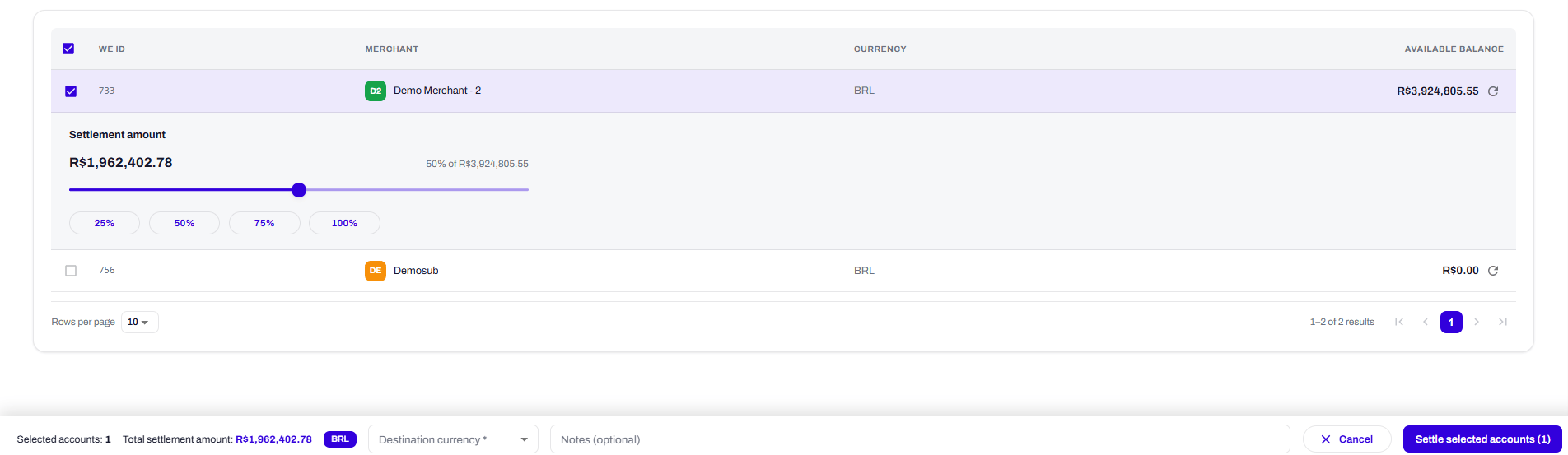
Step 4: Confirm and submit
After selecting the accounts, confirm the total amount and submit your settlement request. The funds will be processed according to your regular settlement schedule.💡 For FIAT settlements we have a minimum for withdrawal of BRL 10k, and for Stablecoin BRL 25k.
Access management
Access to the settlement page and sub-merchant visibility is controlled at the user level:- Master user: Has visibility and settlement rights over all MIDs (parent and sub-merchants) by default.
- Delegated users: The master user can grant settlement permissions to other users as needed. Once granted, those users will also have access to the full list of sub-merchants under the parent MID and can request settlements on their behalf.
Why we made this change
Previously, the settlement page displayed all MIDs – parent and sub-merchants – together in a single list. To request a settlement for multiple sub-merchants, you had to manually select each one individually, which could be time-consuming and prone to errors, especially for accounts with many sub-entities. The new flow addresses this by:How to get started
- Log in to your WEpayments Dashboard
- Go to the Acoount > Settlements page
- Select your parent MID from the list
- Review the sub-merchants displayed
- Choose whether to settle all accounts or specific ones
- Confirm and submit your settlement request
If you need to grant settlement access to other users, the master user can manage permissions directly from the Dashboard.If you have any questions about the new settlement flow, please reach out to our support team or your account manager.