> ## Documentation Index
> Fetch the complete documentation index at: https://support.wepayments.com.br/llms.txt
> Use this file to discover all available pages before exploring further.
# Account and Submerchant Onboarding Dashboard: Complete Guide
## **Overview**
The account onboarding dashboard is designed to simplify the process of opening new accounts for sub-merchants, partners, and franchises. It guides users through each step, ensuring all required information and documents are collected in an organized manner.
## **Step 1: New Account Request**
The process begins with the **New Account Request** form, where company information, address, and contacts are entered.
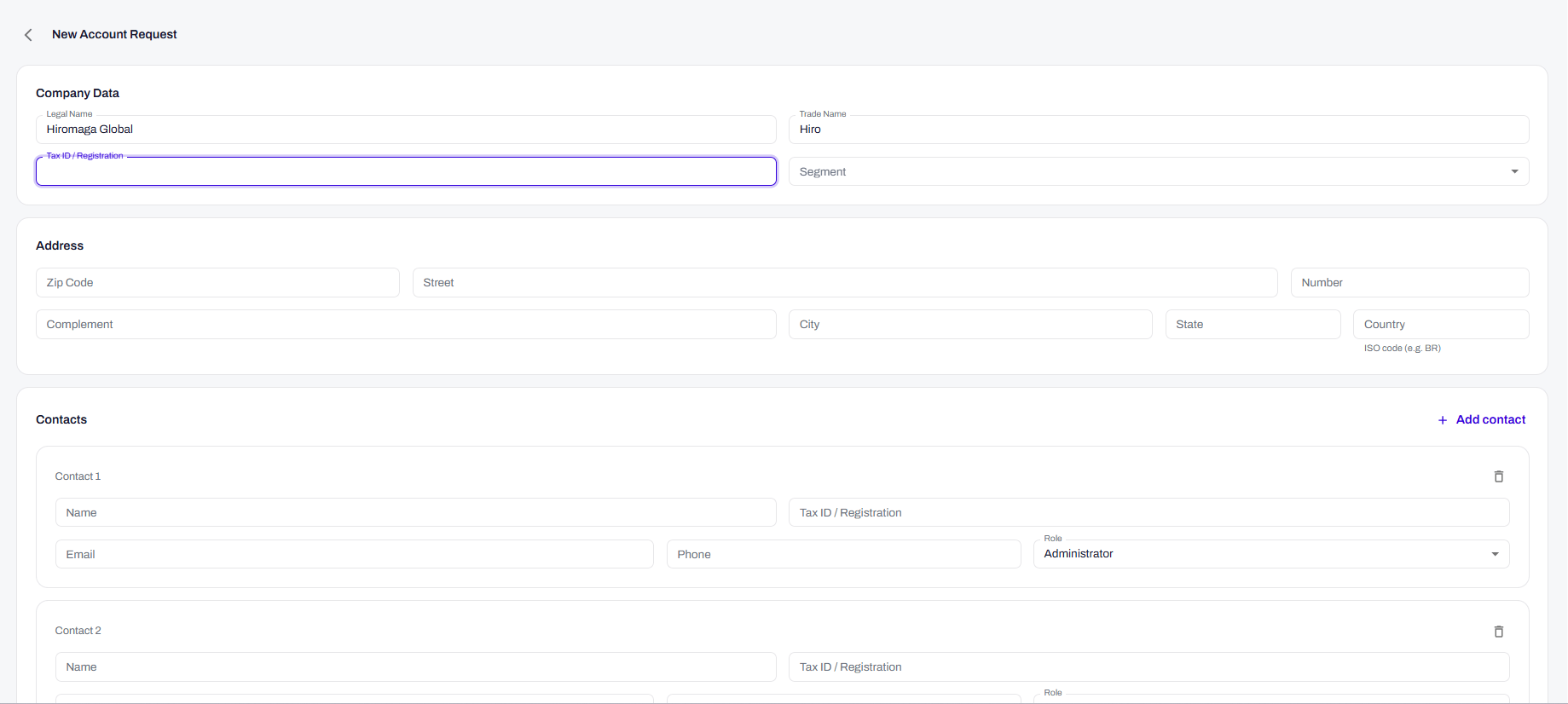 ### **Company Information**
| **Field** | **Description** | **Required** |
| :---------------------- | :----------------------------------------------- | :----------- |
| **Legal Name** | Official company name | Yes |
| **CNPJ / Registration** | Company tax ID (14 digits) | Yes |
| **Trade Name** | Business trading name | Yes |
| **Segment** | Business category (e.g., E-commerce, Technology) | Yes |
### **Address**
| **Field** | **Description** | **Required** |
| :------------- | :---------------------------------------- | :----------- |
| **ZIP Code** | Postal code | Yes |
| **Street** | Street name, avenue, etc. | Yes |
| **Number** | Building number | Yes |
| **Complement** | Additional information (apartment, suite) | No |
| **City** | Municipality | Yes |
| **State / UF** | Federation unit | Yes |
| **Country** | Country of the company | Yes |
| **ISO Code** | Standardized country code (e.g., BR) | Yes |
### **Contacts**
The company must provide **at least two contacts**, with different profiles:
| **Profile** | **Description** |
| :----------------------- | :------------------------------------------------------------------------------------- |
| **Administrator** | Responsible for managing the account in the dashboard. Has administrative permissions. |
| **Legal Representative** | Person authorized to sign the contract. Can be a partner or attorney-in-fact. |
#### **Contact information**
| **Field** | **Description** |
| :--------------------- | :---------------------------------------------------------- |
| **Full Name** | Complete name |
| **CPF / Registration** | Individual tax ID |
| **Role** | Position in the company (e.g., Partner, Director, Attorney) |
| **Email** | Email address for notifications |
| **Phone** | Contact phone number (with area code) |
> **Note:** Additional contacts such as Financial or Commercial roles can be added to facilitate internal communication.
## **Step 2: Review Dashboard**
After submitting the request, the dashboard displays a consolidated view of progress with clear indicators.
### **Company Information**
| **Field** | **Description** | **Required** |
| :---------------------- | :----------------------------------------------- | :----------- |
| **Legal Name** | Official company name | Yes |
| **CNPJ / Registration** | Company tax ID (14 digits) | Yes |
| **Trade Name** | Business trading name | Yes |
| **Segment** | Business category (e.g., E-commerce, Technology) | Yes |
### **Address**
| **Field** | **Description** | **Required** |
| :------------- | :---------------------------------------- | :----------- |
| **ZIP Code** | Postal code | Yes |
| **Street** | Street name, avenue, etc. | Yes |
| **Number** | Building number | Yes |
| **Complement** | Additional information (apartment, suite) | No |
| **City** | Municipality | Yes |
| **State / UF** | Federation unit | Yes |
| **Country** | Country of the company | Yes |
| **ISO Code** | Standardized country code (e.g., BR) | Yes |
### **Contacts**
The company must provide **at least two contacts**, with different profiles:
| **Profile** | **Description** |
| :----------------------- | :------------------------------------------------------------------------------------- |
| **Administrator** | Responsible for managing the account in the dashboard. Has administrative permissions. |
| **Legal Representative** | Person authorized to sign the contract. Can be a partner or attorney-in-fact. |
#### **Contact information**
| **Field** | **Description** |
| :--------------------- | :---------------------------------------------------------- |
| **Full Name** | Complete name |
| **CPF / Registration** | Individual tax ID |
| **Role** | Position in the company (e.g., Partner, Director, Attorney) |
| **Email** | Email address for notifications |
| **Phone** | Contact phone number (with area code) |
> **Note:** Additional contacts such as Financial or Commercial roles can be added to facilitate internal communication.
## **Step 2: Review Dashboard**
After submitting the request, the dashboard displays a consolidated view of progress with clear indicators.
 ### **Progress indicators**
| **Indicator** | **Description** |
| :------------ | :-------------------------------------------------------------- |
| **Total** | Total number of documents required for the segment and modality |
| **Approved** | Documents already validated by the compliance team |
| **Rejected** | Documents that need to be resubmitted (with reason) |
| **Pending** | Documents not yet uploaded |
| **Sent** | Documents submitted and awaiting analysis |
### **Progress bar**
The progress bar (displayed as a percentage) shows the overall onboarding progress, based on the number of approved documents relative to the total required.
### **Company details view**
The details screen displays:
| **Section** | **Information** |
| :--------------------- | :--------------------------------------------------------- |
| **Company Data** | Legal Name, CNPJ, Trade Name, Segment |
| **Address** | ZIP Code, Street, Number, Complement, City, State, Country |
| **Contacts** | Name, Profile (Administrator/Legal Rep), CPF, Phone |
| **Additional Details** | Account ID, Segment, Parent Company (after approval) |
## **Step 3: Document Submission**
When the request status advances to **"pending\_documents"**, the dashboard displays the list of required documents.
### **Document screen features**
| **Feature** | **Description** |
| :------------------- | :------------------------------------------------------------ |
| **List view** | Displays all requested documents with their current status |
| **File upload** | Drag-and-drop or file selection for submission |
| **Rejection reason** | In case of rejection, displays detailed reason for correction |
| **Document preview** | Option to view the uploaded file |
### **Rejection example**
In the image, a document was rejected with the reason:
> **"Not an official document."**
The user can view the document, fix the issue, and resume.
### **Progress indicators**
| **Indicator** | **Description** |
| :------------ | :-------------------------------------------------------------- |
| **Total** | Total number of documents required for the segment and modality |
| **Approved** | Documents already validated by the compliance team |
| **Rejected** | Documents that need to be resubmitted (with reason) |
| **Pending** | Documents not yet uploaded |
| **Sent** | Documents submitted and awaiting analysis |
### **Progress bar**
The progress bar (displayed as a percentage) shows the overall onboarding progress, based on the number of approved documents relative to the total required.
### **Company details view**
The details screen displays:
| **Section** | **Information** |
| :--------------------- | :--------------------------------------------------------- |
| **Company Data** | Legal Name, CNPJ, Trade Name, Segment |
| **Address** | ZIP Code, Street, Number, Complement, City, State, Country |
| **Contacts** | Name, Profile (Administrator/Legal Rep), CPF, Phone |
| **Additional Details** | Account ID, Segment, Parent Company (after approval) |
## **Step 3: Document Submission**
When the request status advances to **"pending\_documents"**, the dashboard displays the list of required documents.
### **Document screen features**
| **Feature** | **Description** |
| :------------------- | :------------------------------------------------------------ |
| **List view** | Displays all requested documents with their current status |
| **File upload** | Drag-and-drop or file selection for submission |
| **Rejection reason** | In case of rejection, displays detailed reason for correction |
| **Document preview** | Option to view the uploaded file |
### **Rejection example**
In the image, a document was rejected with the reason:
> **"Not an official document."**
The user can view the document, fix the issue, and resume.
 ## **Step 4: Digital Signature (Domestic Companies)**
For companies based in Brazil (country = BR), the final step requires signing the contract digitally.
### **Signature screen features**
| **Feature** | **Description** |
| :--------------------- | :------------------------------------------------------ |
| **Generated document** | Contract automatically generated based on company data |
| **Preview document** | Opens the PDF contract for review |
| **Download document** | Option to download the PDF |
| **Signatories** | List of people required to sign (Legal Representatives) |
| **Status** | Pending / Signed |
| **"Sign" button** | Redirects to the electronic signature flow |
### **Practical example**
| **Signatory** | **Email** | **Status** |
| :------------ | :------------------------------------------ | :----------------- |
| Ana Wintour | [anawin@gmail.com](mailto:anawin@gmail.com) | Awaiting signature |
> **Note:** Each Legal Representative receives an email link to sign digitally. Onboarding is only completed after all signatures are collected.
## Step 5: Account Active
After document approval and, when applicable, contract signature, the account reaches **"active"** status.
## **Step 4: Digital Signature (Domestic Companies)**
For companies based in Brazil (country = BR), the final step requires signing the contract digitally.
### **Signature screen features**
| **Feature** | **Description** |
| :--------------------- | :------------------------------------------------------ |
| **Generated document** | Contract automatically generated based on company data |
| **Preview document** | Opens the PDF contract for review |
| **Download document** | Option to download the PDF |
| **Signatories** | List of people required to sign (Legal Representatives) |
| **Status** | Pending / Signed |
| **"Sign" button** | Redirects to the electronic signature flow |
### **Practical example**
| **Signatory** | **Email** | **Status** |
| :------------ | :------------------------------------------ | :----------------- |
| Ana Wintour | [anawin@gmail.com](mailto:anawin@gmail.com) | Awaiting signature |
> **Note:** Each Legal Representative receives an email link to sign digitally. Onboarding is only completed after all signatures are collected.
## Step 5: Account Active
After document approval and, when applicable, contract signature, the account reaches **"active"** status.
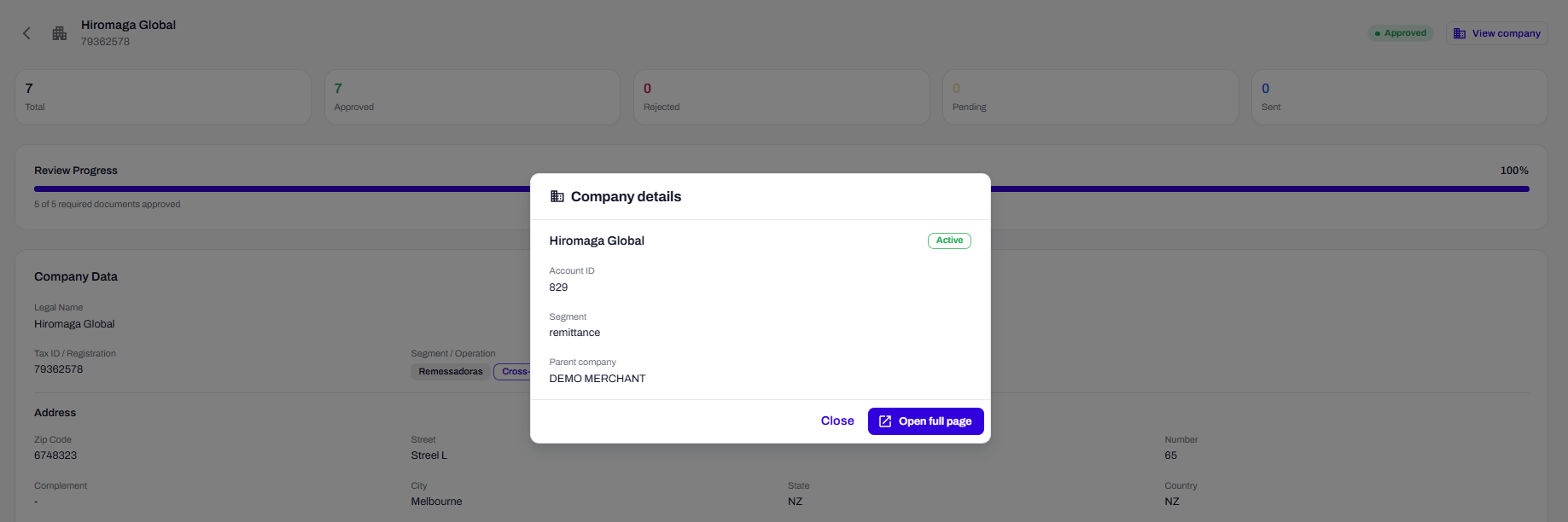 ### **What changes on the screen**
| **Indicator** | **Evolution** |
| :------------------ | :-------------------------------------------------------- |
| **Progress** | Progress bar reaches 100% |
| **Document status** | All required documents approved |
| **Account ID** | Generated and displayed (e.g., 828) |
| **Parent Company** | Identification of the main merchant (e.g., DEMO MERCHANT) |
### **Completion example**
In the final image, we see:
* **Total:** 7 documents
* **Approved:** 5
* **Pending:** 2
* **Progress:** "5 of 5 mandatory documents approved"
The screen displays **Account ID 828** and **Segment "ecommerce"**, indicating the account is ready to operate.
## **Visual flow summary**
| **Step** | **What the user sees** | **Action required** |
| :----------------------- | :--------------------------------------------------------------------- | :------------------------------------ |
| **1. New Request** | Form with Company Data, Address, and Contacts | Fill and submit |
| **2. Tracking** | Indicators (Total, Approved, Rejected, Pending, Sent) and progress bar | Wait for analysis or upload documents |
| **3. Document Upload** | List of required documents with status and upload buttons | Upload files; fix rejections |
| **4. Digital Signature** | Generated contract, signatory list, and "Sign" button | Each legal representative signs |
| **5. Account Active** | Account ID generated, all documents approved | Account ready for use |
## **Next steps**
* **Create a request:** Go to the Dashboard and click **"New Account Request"**
* **Track progress:** Use indicators and the progress bar to monitor status
* **Submit documents:** Use drag-and-drop upload functionality
* **Sign contract:** Legal representatives receive the link via email
* **Start operating:** After activation, use the Account ID to process transactions
## **Frequently Asked Questions (FAQ)**
**1. Can I add more than two contacts?**
### **What changes on the screen**
| **Indicator** | **Evolution** |
| :------------------ | :-------------------------------------------------------- |
| **Progress** | Progress bar reaches 100% |
| **Document status** | All required documents approved |
| **Account ID** | Generated and displayed (e.g., 828) |
| **Parent Company** | Identification of the main merchant (e.g., DEMO MERCHANT) |
### **Completion example**
In the final image, we see:
* **Total:** 7 documents
* **Approved:** 5
* **Pending:** 2
* **Progress:** "5 of 5 mandatory documents approved"
The screen displays **Account ID 828** and **Segment "ecommerce"**, indicating the account is ready to operate.
## **Visual flow summary**
| **Step** | **What the user sees** | **Action required** |
| :----------------------- | :--------------------------------------------------------------------- | :------------------------------------ |
| **1. New Request** | Form with Company Data, Address, and Contacts | Fill and submit |
| **2. Tracking** | Indicators (Total, Approved, Rejected, Pending, Sent) and progress bar | Wait for analysis or upload documents |
| **3. Document Upload** | List of required documents with status and upload buttons | Upload files; fix rejections |
| **4. Digital Signature** | Generated contract, signatory list, and "Sign" button | Each legal representative signs |
| **5. Account Active** | Account ID generated, all documents approved | Account ready for use |
## **Next steps**
* **Create a request:** Go to the Dashboard and click **"New Account Request"**
* **Track progress:** Use indicators and the progress bar to monitor status
* **Submit documents:** Use drag-and-drop upload functionality
* **Sign contract:** Legal representatives receive the link via email
* **Start operating:** After activation, use the Account ID to process transactions
## **Frequently Asked Questions (FAQ)**
**1. Can I add more than two contacts?**
Yes. The **"+ Add contact"** button allows additional profiles such as Financial or Commercial.
**2. What is the difference between Administrator and Legal Representative?**
**Administrator:** Responsible for account management in the dashboard. **Legal Representative:** Person authorized to sign the contract (partner or attorney-in-fact).
**3. What happens if a document is rejected?**
The document shows "Rejected" status with the reason. The user must fix the issue and resubmit the file.
**4. How do I know which documents to send?**
The list of required documents is automatically displayed in the dashboard when the request reaches `pending_documents` status.
**5. Do I need to sign a contract?**
Only **domestic** companies (country = BR) need to sign digitally. Cross-border companies skip this step.
**6. How long does document review take?**
Timelines vary by case complexity, typically 2 to 5 business days.
**7. What is the Account ID?**
It's the unique identifier for the account (Merchant ID). It is generated and displayed when the account is activated.
**8. Can I track progress on mobile?**
Yes. The Dashboard is responsive and accessible on phone, tablet, or computer.